
Multi-platform installation
Covers installation essentials for Windows, macOS, Android, and iOS, completing basic configuration by device type.
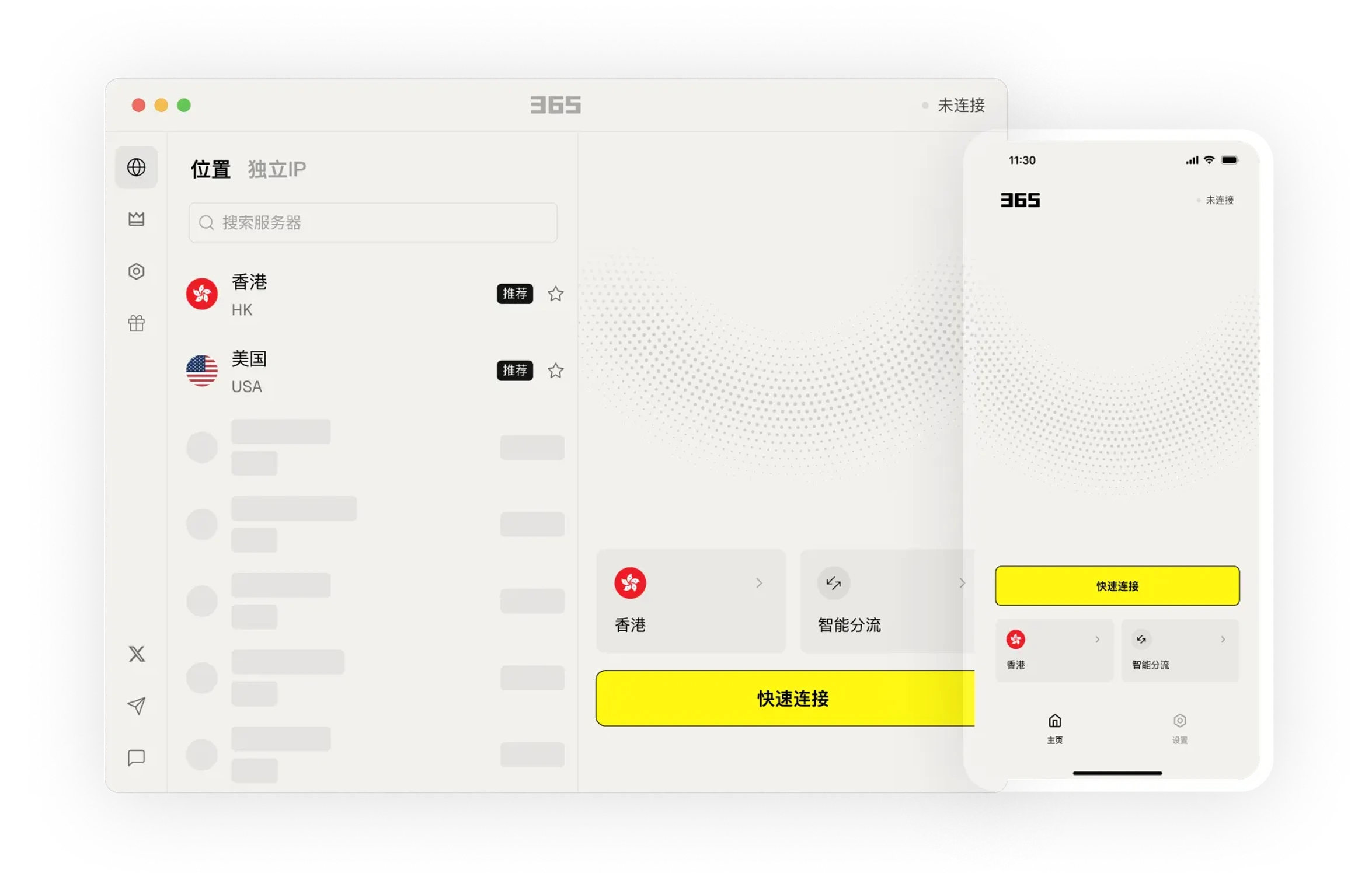
Learn about product features through clear instructions and arrange usage that fits your needs.
Choose the connection method that suits your current environment for daily work, communication and browsing.
Connect to 500+ servers worldwide across 60+ countries and regions. Access content from anywhere.
Seamlessly access Google, YouTube, and other services. Easily access global content and enjoy worldwide services.
Centralize your frequently used connections and device settings to reduce the steps for finding and switching.
Download Now →Always here to help. Day or night.
Providing you with the simplest guidance - no difficult technical jargon.
From smartphones to routers and TVs, we've got you covered!
Centralize your frequently used connections and device settings to reduce the steps for finding and switching.

We provide easy-to-understand articles to help you stay informed.

Centralize your frequently used connections and device settings to reduce the steps for finding and switching.
After installation, you can view the settings and help content in the app to gradually get familiar with common features.

After installation, you can view the settings and help content in the app to gradually get familiar with common features.
Learn about the device version and usage method that suits you, and arrange connections and work as needed.
Select your device system in the download center and view the corresponding version name.
Open the installation file and follow the on-screen setup instructions on your device.
365 VPN is designed for users who need secure access, cross-device synchronization, and low-barrier configuration. It provides concise guidance on installation, connection, and common issues to help you get up and running quickly on different systems.
Covers installation essentials for Windows, macOS, Android, and iOS, completing basic configuration by device type.
Select a nearby node and connect with one click, suitable for daily browsing, remote work, and public network environments.
Determine whether the connection is successful by checking the current network status and node response, reducing unnecessary waiting.
First confirm that your system version meets the requirements, then check whether security software is blocking it. If it still won't open, try uninstalling and reinstalling, and keep your system time accurate.
You can switch to a node that is closer or has a lower load, and close background apps that consume a lot of bandwidth. If the problem persists, try changing your network environment before trying again.